
Introduction to Wireless Mouse Customization
A wireless mouse can change how you work and play. Many people use a wireless mouse every day. But few know how to make it better. Customizing your wireless mouse boosts efficiency. It saves time and reduces effort. In this blog, we share hacks for your wireless mouse. We cover remapping buttons and more. These tips work for most wireless mouse models in 2025.
Why customize a mouse? It fits your needs. For example, gamers need fast response. Office workers want smooth scrolling. A customized wireless mouse feels like an extension of your hand. You can adjust sensitivity for precision. Or pair it with multiple devices for easy switching. These hacks make your mouse more powerful.
We aim for simple tips anyone can try. No need for expert skills. Just follow the steps. By the end, your mouse will work better. Let’s start with basic hacks. They lay the foundation for advanced ones.
Understanding Your Mouse Basics
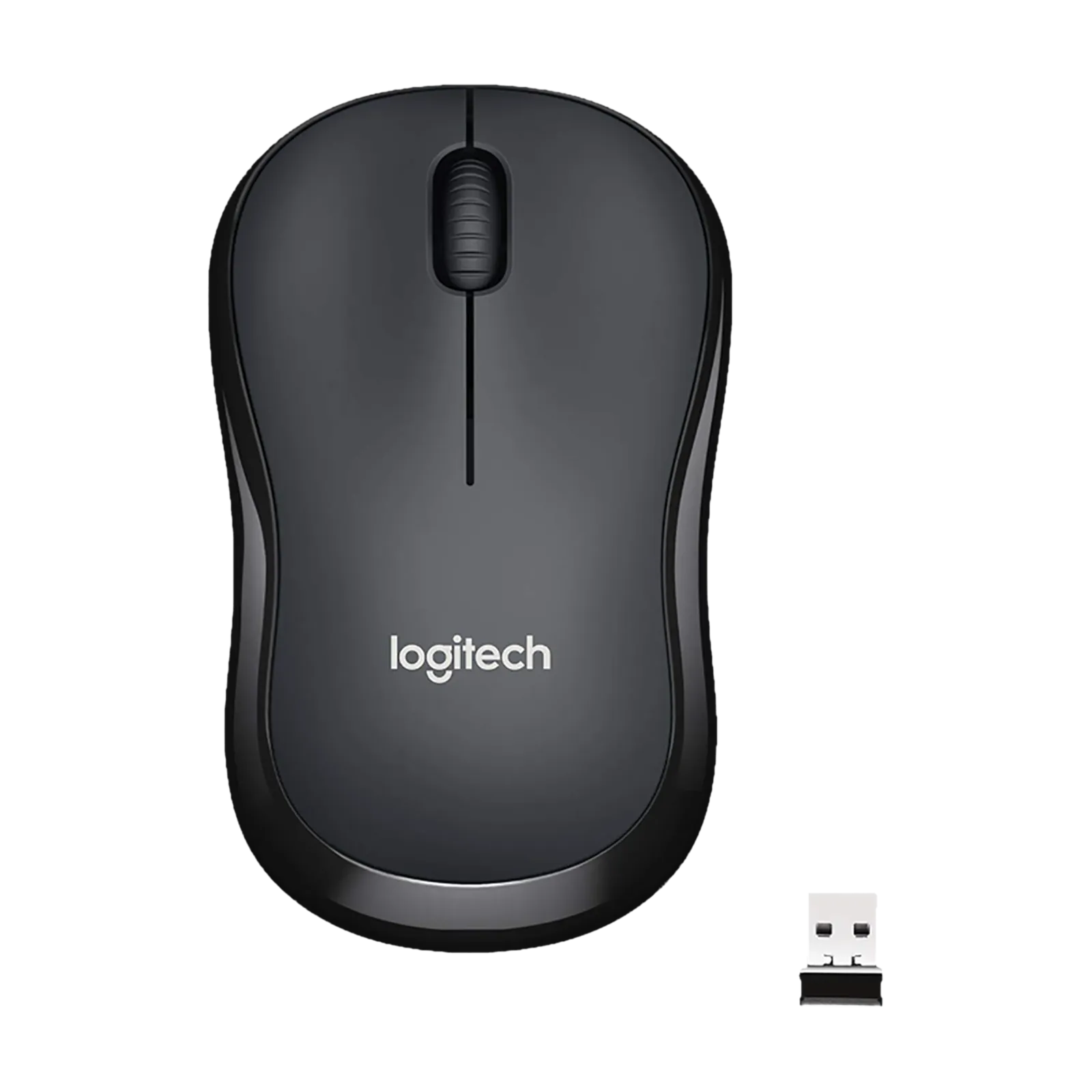
First, know your mouse parts. Most have left and right buttons. A scroll wheel in the middle. Some mouse models add side buttons. These extras are great for hacks.
mouse connects via Bluetooth or USB dongle. Bluetooth is common in 2025. It saves ports on your laptop. Check your mouse manual for connection type. This helps with customization.
Battery life matters too. A good wireless mouse lasts weeks on one charge. But hacks can drain it faster. We will cover battery tips later. For now, ensure your wireless mouse is charged. Plug it in if needed.
Customization starts with software. Many brands offer free apps. For Logitech wireless mouse, use Logi Options+. Razer has Synapse. Microsoft wireless mouse uses Mouse and Keyboard Center. Download the right one for your mouse.
If no brand software, use third-party tools. X-Mouse Button Control is popular. It remaps buttons on any mouse. reWASD works for macros. These tools are free or cheap. They expand what your wireless mouse can do.
Adjusting Sensitivity and DPI on Your Mouse
Sensitivity controls how fast the cursor moves. DPI means dots per inch. Higher DPI makes the wireless mouse faster. Lower DPI gives more control.
Why adjust DPI on a wireless mouse? For tasks like drawing, low DPI helps. Gaming needs high DPI for quick turns. Office work likes medium settings.
How to change DPI? Many wireless mouse have a button for it. Press it to cycle levels. Lights show the current DPI. For example, red for low, blue for high.
No button? Use software. In Windows, go to Settings. Click Devices, then Mouse. Slide the pointer speed bar. This adjusts sensitivity for your wireless mouse.
For precise control, use brand apps. In Logi Options+, select your wireless mouse. Go to Pointer tab. Drag DPI slider. Set from 400 to 4000 DPI. Test it on your screen.
Mac users, open System Settings. Click Mouse. Adjust tracking speed. It works like DPI for wireless mouse.
Tip: Set multiple DPI profiles. Switch with a button on the mouse. For work, use 800 DPI. For games, jump to 1600 DPI. This hack saves time.
Avoid mouse acceleration. It makes speed uneven. Turn it off in settings. Your mouse moves predictably.
Practice after changes. Move the mouse around. See if it feels right. Adjust until perfect. This simple hack makes your mouse more efficient.
Remapping Buttons for Better Mouse Use
Remapping changes what buttons do. Default settings may not fit you. Remap to match your workflow.
Why remap a mouse? Side buttons can open apps. Or copy and paste. It speeds up tasks.
Start with software. For Logitech wireless mouse, open Logi Options+. Select buttons tab. Click a button. Choose new action like “Back” or “Volume Up”.
Razer Synapse lets you remap too. Assign macros to buttons. For any wireless mouse, try X-Mouse Button Control. Install it. Pick a button. Set to keystroke or command.
Example: Remap side button to Ctrl+C. Now copy with one click on wireless mouse. Great for editing.
Advanced remap: Layer buttons. Hold one, press another for different action. Some wireless mouse support this in software.
For gaming, remap to skills. In FPS games, side button for reload. Your mouse becomes a weapon.
Test remaps. Use in daily tasks. If wrong, change back. This hack turns a basic mouse into a pro tool.
Pairing Your Wireless Mouse with Multiple Devices
One mouse for many gadgets? Yes, with multi-pairing.
Many 2025 mouse pair to three devices. Switch with a button.
How to pair? Turn on Bluetooth on device one. Press pair button on wireless mouse. It flashes. Select in Bluetooth menu.
For device two, switch channel on mouse. Pair again. Now toggle between them.
Logitech Flow lets mouse move between computers. Copy from one, paste to another. Install software on both.
Microsoft mouse pairs easy. Use Swift Pair in Windows.
Tip: Label channels. Device 1 for work PC. Device 2 for laptop. Device 3 for tablet.
Bluetooth vs dongle: Bluetooth for multiple. Dongle for one at a time. Choose based on needs.
If issues, reset mouse. Hold pair button long. Re-pair all devices.
This hack makes your mouse versatile. No need for extras.
Software Tools for Wireless Mouse Customization
Software unlocks mouse potential. Let’s explore best ones.
Logi Options+ for Logitech. Customize buttons, DPI, gestures. Create app-specific settings.
Razer Synapse for Razer mouse. Set macros, lighting, profiles.
SteelSeries GG for their mice. Adjust polling rate for speed.
Third-party: ATNSoft Key Remapper. Remaps buttons and wheel.
reWASD for advanced macros. Works with any mouse.
Install safe. Download from official sites. Update often for new features.
Combine software. Use brand app for basics. Add X-Mouse for extras.
This way, your mouse adapts to any task.
Creating Macros on Your Mouse
Macros automate actions. Record clicks and keys. Play with one button.
Why use macros on wireless mouse? Save time on repeat tasks.
In software, go to macro tab. Hit record. Do actions like open file, type text. Stop record. Assign to button.
Example: Macro for email signature. Press button, it types name and contact.
Gaming macros: Combo moves in one click. But check game rules.
Advanced: Loop macros. Repeat until stopped.
Tools like Mouse Manager help. Or AutoHotkey for scripts.
Test macros. Run in safe app first. Edit if needed.
Macros make mouse a productivity beast.
Setting Up Profiles for Your Wireless Mouse
Profiles store settings. Switch for different uses.
In app, create profile. Set DPI, buttons for work. Another for gaming.
Auto-switch: Software detects app, loads profile.
Example: Excel open? Load profile with scroll hacks.
Profiles keep mouse organized.
Optimizing Battery Life in Your Mouse
Hacks drain battery. But tips extend life.
Turn off when not using. Many mouse have switch.
Lower polling rate. Less checks save power.
Disable RGB lights. They eat battery.
Use sleep mode. Set short timer.
Clean sensor. Dust makes it work harder.
Charge fully. Avoid low battery runs.
These keep your mouse going longer.
Advanced Hacks for Mouse Enthusiasts
Ready for more? Try these.
Gesture controls: Swipe on mouse for actions.
Custom grips: Add tape for comfort.
Firmware updates: Improve performance.
Pair with keyboard for combo hacks.
Explore forums for user tips.
These push your wireless mouse limits.
Troubleshooting Mouse Customization Issues
Problems happen. Here’s fixes.
Lag after DPI change? Check battery.
Buttons not remapping? Restart software.
Pairing fails? Reset Bluetooth.
Macros skip? Slow record speed.
Connection drops? Move dongle closer.
These solve most wireless mouse issues.
Conclusion: Make Your Mouse Yours
Customizing a mouse is fun and useful. From DPI to macros, hacks boost efficiency. Try them on your wireless mouse today. Share your tips in comments. Happy hacking!

Leave A Comment