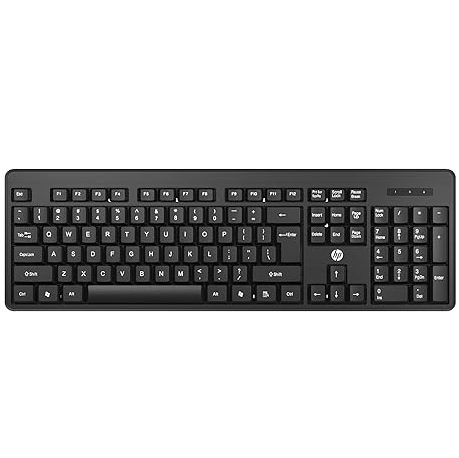
【WIRELESS KEYBOARD】Start typing in a snap with easy plug-and-play USB dongle connectivity.

Wireless Keyboard/Quick Comfy


Original price was: ₹1,700.00.₹799.00Current price is: ₹799.00.
【WIRELESS KEYBOARD】Start typing in a snap with easy plug-and-play USB dongle connectivity.
Wireless Keyboard/Quick Comfy
In today’s fast-paced digital world, a Wireless Keyboard/Quick Comfy solution is essential for boosting productivity, enhancing comfort, and decluttering your workspace. The HP Wireless Keyboard, designed specifically for office use and laptop compatibility, offers a seamless blend of style, functionality, and ergonomic design. This comprehensive guide explores the features, benefits, and practical applications of the HP Wireless Keyboard, ensuring you understand why it’s a top choice for professionals, students, and home users alike. With a focus on Wireless Keyboard/Quick Comfy, we’ll dive into its specifications, setup process, and how it stands out in a crowded market.
A Wireless Keyboard/Quick Comfy design eliminates the hassle of tangled cables, providing a clean and organized workspace. Whether you’re working from a bustling office, a cozy home setup, or a hybrid environment, the freedom of wireless connectivity allows you to position your keyboard wherever it’s most comfortable. The HP Wireless Keyboard, with its plug-and-play USB dongle, ensures a lag-free typing experience, making it ideal for professionals who need quick and reliable performance.
Clutter-Free Workspace: No cables mean a tidier desk, reducing distractions and enhancing focus.
Portability: Lightweight and cordless, the HP Wireless Keyboard is easy to carry, making it perfect for remote workers or students.
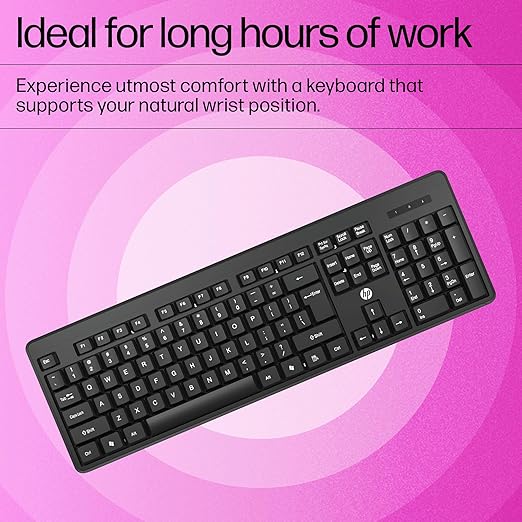
Ergonomic Comfort: Designed to keep your wrists in a natural position, this keyboard minimizes strain during long typing sessions.
Versatile Compatibility: Works seamlessly with Windows XP, Windows Vista, and other devices, ensuring flexibility across platforms.
The Wireless Keyboard/Quick Comfy design is particularly appealing for office environments where efficiency and comfort are paramount. Let’s explore the standout features of the HP Wireless Keyboard that make it a must-have for modern professionals.
The HP Wireless Keyboard is packed with features that cater to office users, students, and anyone seeking a Wireless Keyboard/Quick Comfy experience. Here’s a detailed breakdown of its specifications and why they matter.
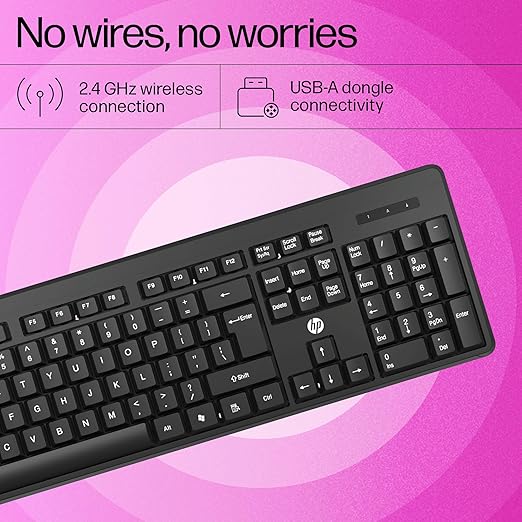
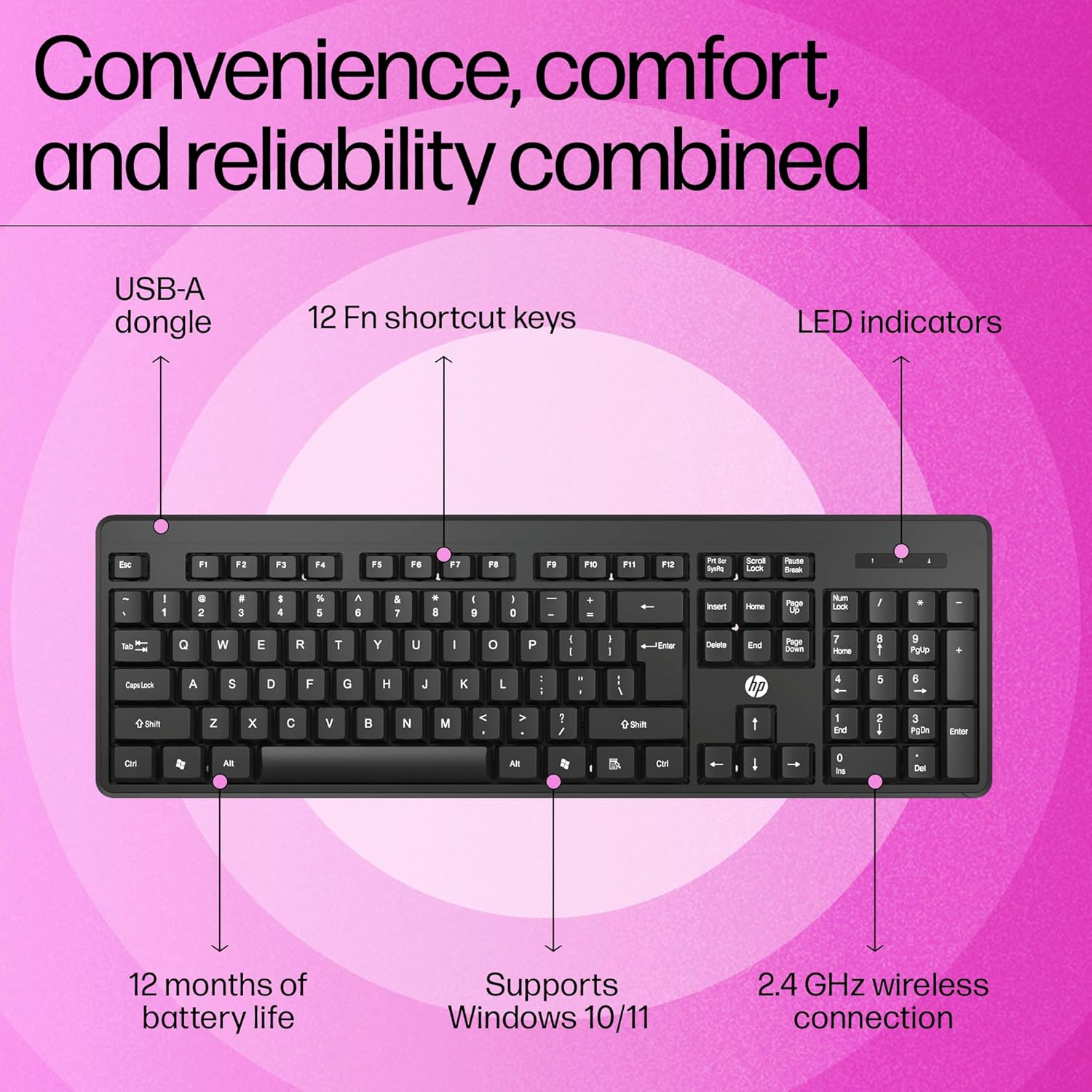
The HP Wireless Keyboard uses a plug-and-play USB dongle for instant connectivity. Simply plug the dongle into your laptop or PC, and you’re ready to type—no complicated setup required. The 2.4GHz wireless connection ensures a stable, lag-free experience, even in busy office environments with multiple devices. This makes the Wireless Keyboard/Quick Comfy ideal for professionals who need reliable performance without delays.
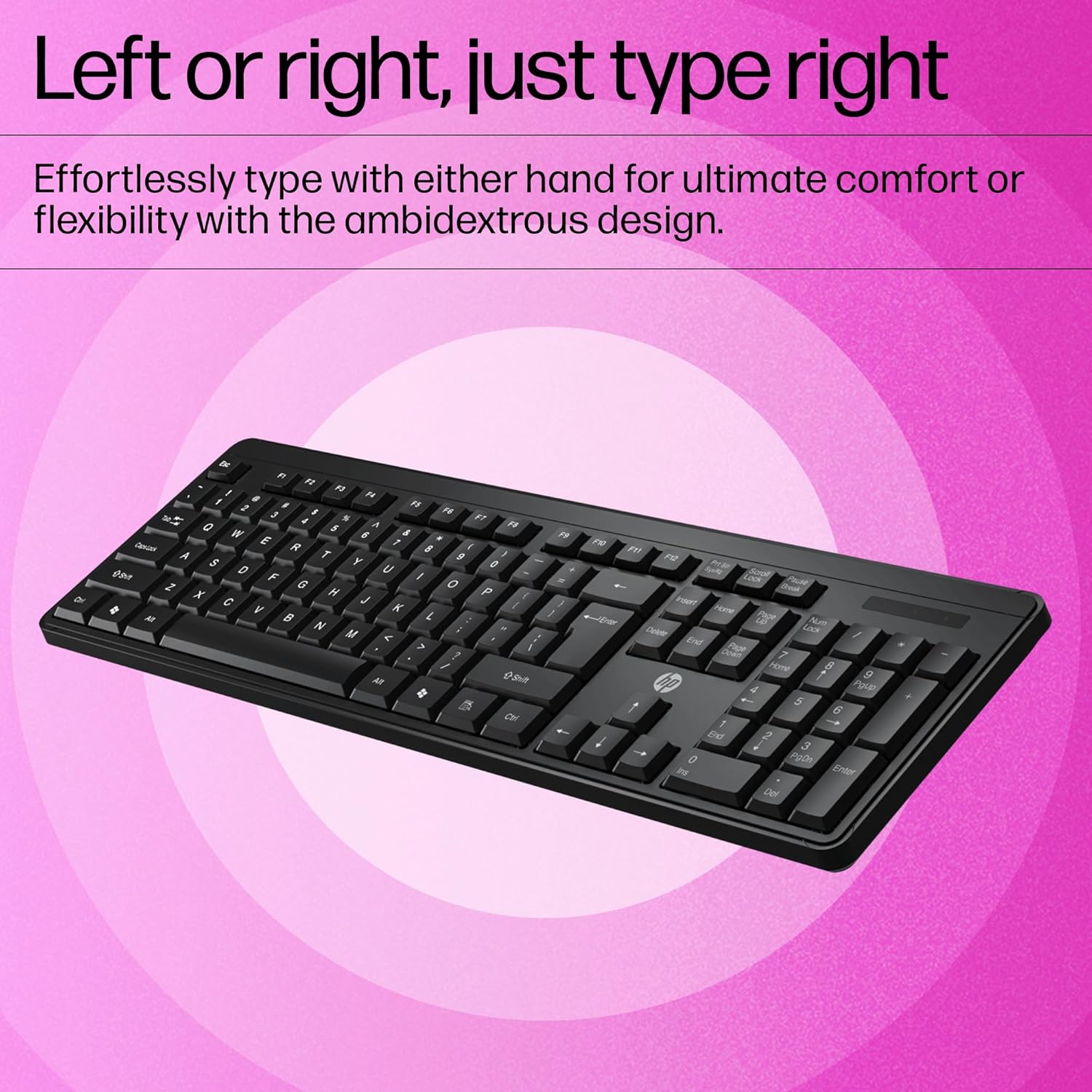
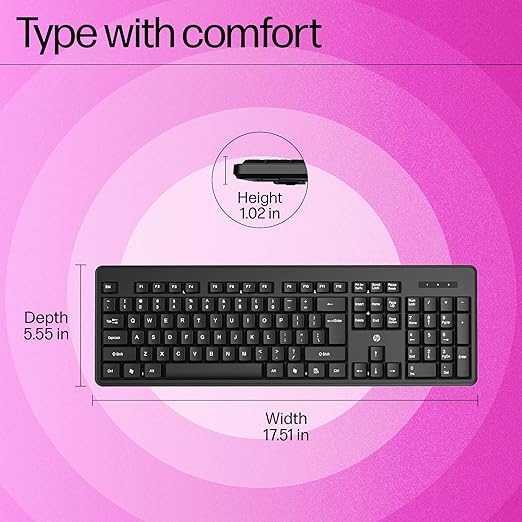
Designed with all-day comfort in mind, the HP Wireless Keyboard features a chiclet-style layout with low-profile keys. This design reduces wrist strain and promotes a natural typing posture, making it perfect for extended work sessions. The sleek, black finish adds a touch of sophistication to any workspace, whether it’s a corporate office or a home desk. The Wireless Keyboard/Quick Comfy aesthetic ensures you look professional while feeling comfortable.
The keyboard includes 12 Fn shortcut keys, allowing you to access common functions like volume control, media playback, and screen brightness with a single press. The chiclet-style keys are engineered for quiet typing, minimizing noise in shared workspaces. This feature is especially valuable in open-plan offices where a Wireless Keyboard/Quick Comfy solution can reduce distractions for you and your colleagues.
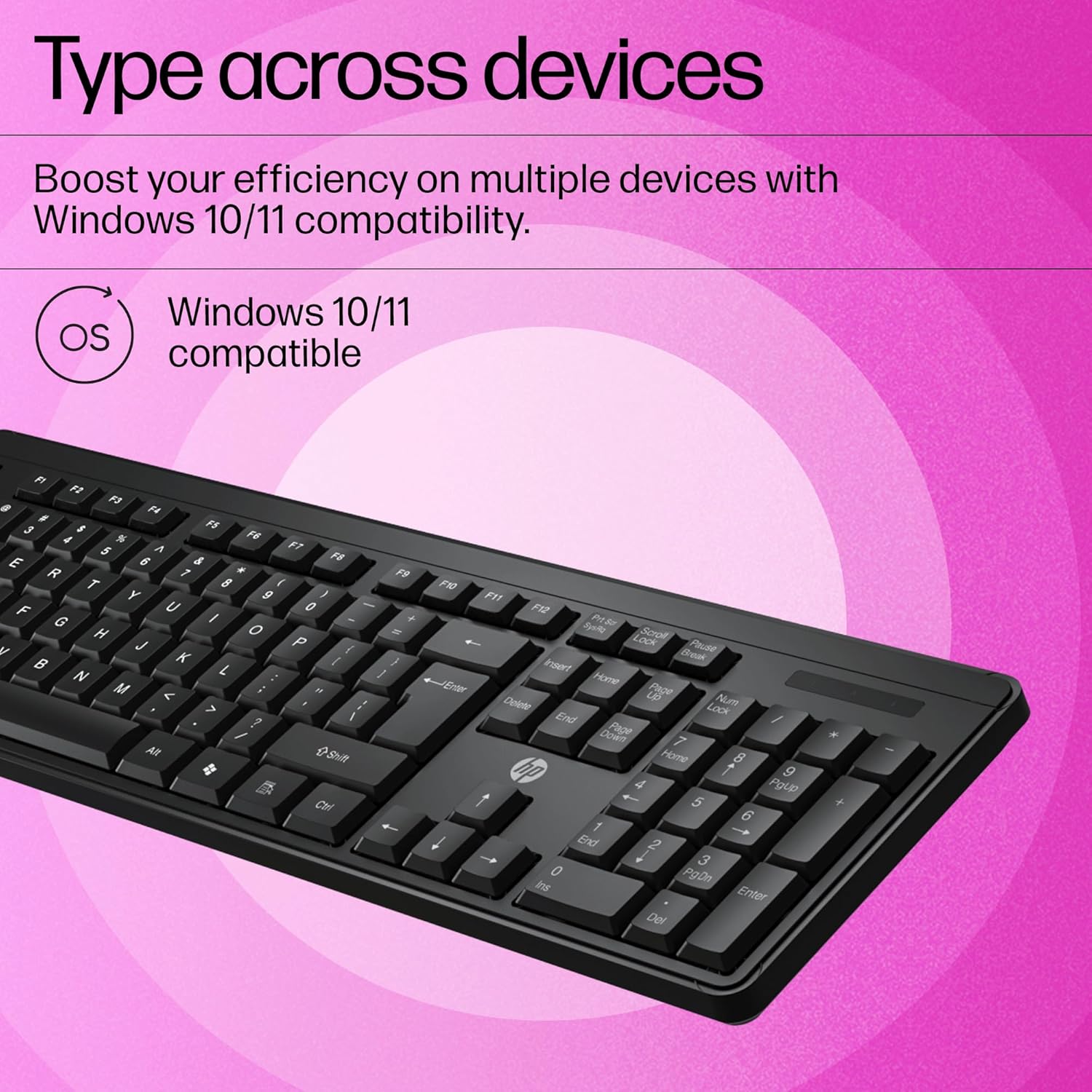
The HP Wireless Keyboard is compatible with a wide range of devices, including laptops and PCs running Windows XP, Windows Vista, and later versions. Its ability to pair effortlessly with multiple operating systems makes it a versatile choice for users who switch between devices. Whether you’re using a Windows laptop, a Mac, or even a tablet, this Wireless Keyboard/Quick Comfy option adapts to your needs.
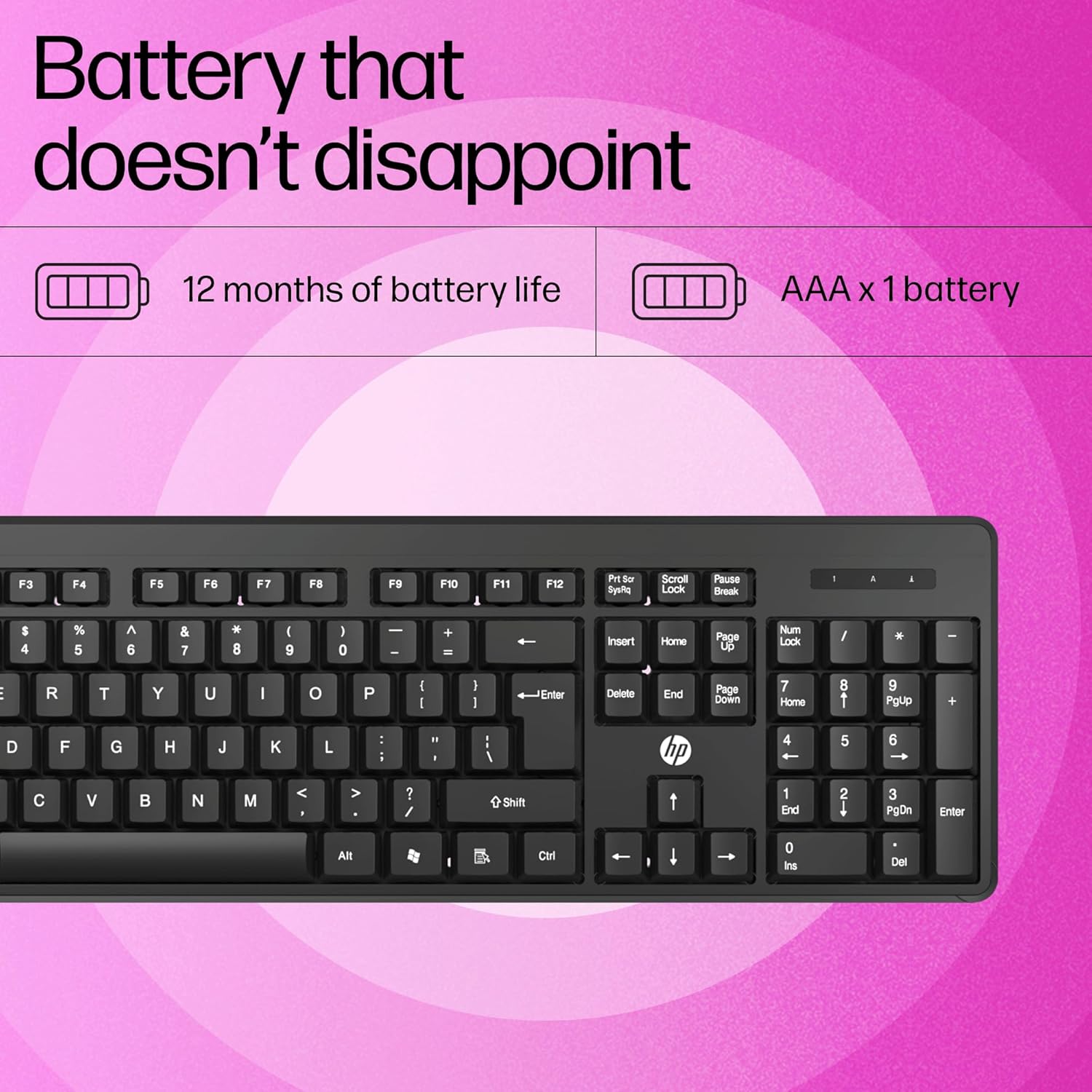
Equipped with two AAA batteries, the HP Wireless Keyboard offers up to 16 months of use, depending on usage patterns. This long battery life ensures uninterrupted productivity, making it a reliable choice for busy professionals. The Wireless Keyboard/Quick Comfy design prioritizes convenience, so you can focus on your work without worrying about frequent battery replacements.
HP backs this keyboard with a 3-year warranty, providing peace of mind for users. With 24/7 online support available through the HP Customer Support Center, any issues can be resolved quickly and efficiently. This commitment to customer satisfaction makes the HP Wireless Keyboard a dependable choice for office use.
Setting up the HP Wireless Keyboard is a breeze, thanks to its plug-and-play functionality. Follow these simple steps to get started with your Wireless Keyboard/Quick Comfy solution:
Insert Batteries: Open the battery compartment on the back of the keyboard and insert the two included AAA batteries.
Plug in the USB Dongle: Insert the USB dongle into an available USB port on your laptop or PC.
Wait for Pairing: The keyboard will automatically connect to the dongle. No additional software or drivers are needed for Windows XP or Vista.
Test the Keyboard: Open a text editor or browser and start typing to ensure the keyboard is functioning correctly.
Customize Settings (Optional): Use HP’s software to customize the Fn shortcut keys for specific tasks, enhancing your productivity.
This straightforward setup process ensures you can start using your Wireless Keyboard/Quick Comfy device in minutes, whether you’re in an office, at home, or on the go.
With so many wireless keyboards on the market, what makes the HP Wireless Keyboard a top choice for office use? Here are some reasons why it excels as a Wireless Keyboard/Quick Comfy solution:
The inclusion of 12 Fn shortcut keys streamlines common tasks, such as opening applications, adjusting volume, or controlling media. This feature is particularly useful for office workers who need to multitask efficiently. The Wireless Keyboard/Quick Comfy design ensures you can work faster and smarter.
Unlike traditional keyboards with loud, clicky keys, the HP Wireless Keyboard’s chiclet-style keys provide a near-silent typing experience. This is a game-changer in shared workspaces, where noise can be a distraction. The Wireless Keyboard/Quick Comfy feature makes it ideal for open-plan offices or libraries.
Prolonged typing can lead to wrist strain, but the HP Wireless Keyboard’s ergonomic design minimizes discomfort. The low-profile keys and natural wrist positioning make it a Wireless Keyboard/Quick Comfy choice for users who spend hours typing reports, emails, or code.
Built by HP, a trusted name in technology, this keyboard is designed to withstand daily use. The 3-year warranty and robust construction ensure it’s a long-term investment for your office setup. The Wireless Keyboard/Quick Comfy reliability means you can count on it for years to come.
Priced competitively, the HP Wireless Keyboard offers premium features at a budget-friendly cost. Compared to other wireless keyboards, it provides exceptional value with its combination of ergonomic design, long battery life, and versatile compatibility.
To understand the value of the HP Wireless Keyboard, let’s compare it to other popular Wireless Keyboard/Quick Comfy options on the market, such as the Logitech MK270 and Microsoft Wireless Desktop 850.
Connectivity: Both keyboards use a 2.4GHz USB dongle, but the HP model offers broader compatibility with Windows XP and Vista, while the Logitech MK270 is optimized for newer Windows versions.
Design: The HP keyboard’s chiclet-style keys are quieter and more ergonomic than the Logitech’s traditional keys, making it a better Wireless Keyboard/Quick Comfy choice for shared workspaces.
Battery Life: The HP keyboard lasts up to 16 months, while the Logitech MK270 offers up to 24 months. However, HP’s ergonomic design may outweigh the slight difference in battery life for many users.
Price: Both are budget-friendly, but the HP keyboard’s 3-year warranty provides added value.
Connectivity: Both keyboards use a USB dongle, but the Microsoft model supports a slightly shorter wireless range (15 feet vs. HP’s 32.8 feet).
Design: The HP keyboard’s chiclet keys are quieter and more comfortable than the Microsoft model’s membrane keys, making it a superior Wireless Keyboard/Quick Comfy option.
Features: The HP keyboard includes 12 Fn shortcut keys, while the Microsoft model offers fewer customizable options.
Warranty: HP’s 3-year warranty is more comprehensive than Microsoft’s standard 1-year warranty.
While competitors offer solid features, the HP Wireless Keyboard’s combination of ergonomic design, quiet typing, and long warranty makes it a standout Wireless Keyboard/Quick Comfy choice.
The HP Wireless Keyboard is versatile enough to meet a variety of needs, from office work to personal projects. Here are some scenarios where it shines as a Wireless Keyboard/Quick Comfy solution:
For professionals working on reports, spreadsheets, or emails, the HP Wireless Keyboard’s shortcut keys and quiet typing enhance efficiency. Its ergonomic design reduces fatigue during long workdays, making it a top Wireless Keyboard/Quick Comfy pick for office environments.
With its portability and long battery life, the HP Wireless Keyboard is ideal for remote workers who need a reliable typing solution at home, in coworking spaces, or on the go. The Wireless Keyboard/Quick Comfy design ensures comfort wherever you work.
Students can benefit from the keyboard’s compatibility with multiple devices, allowing them to switch between a laptop and tablet for note-taking, research, or assignments. The quiet keys are perfect for library settings, reinforcing its Wireless Keyboard/Quick Comfy appeal.
For home offices, the HP Wireless Keyboard’s sleek design and clutter-free connectivity create a professional workspace. Its durability ensures it can handle daily use, from video calls to personal projects.
While the HP Wireless Keyboard is designed for reliability, you may encounter occasional issues. Here are some common problems and solutions to maintain your Wireless Keyboard/Quick Comfy experience:
Solution: Ensure the USB dongle is securely plugged into a working USB port. Try a different port or restart your device. Replace the batteries if they’re low.
Solution: Move the keyboard closer to the USB dongle to reduce interference. Avoid placing the dongle near other wireless devices, such as routers or Bluetooth gadgets.
Solution: Download and install HP’s keyboard software from the official HP website to customize and troubleshoot Fn key functionality.
Solution: If the battery life seems shorter than expected, turn off the keyboard when not in use. Replace with high-quality AAA batteries for optimal performance.
For additional support, contact the HP Customer Support Center, available 24/7, to resolve any issues with your Wireless Keyboard/Quick Comfy device.
To get the most out of your HP Wireless Keyboard, follow these tips to enhance its Wireless Keyboard/Quick Comfy performance:
Keep the USB Dongle Accessible: Store the dongle in a safe place when not in use to avoid misplacement.
Clean Regularly: Wipe the keyboard with a soft, dry cloth to prevent dust buildup, ensuring smooth key performance.
Customize Shortcuts: Use HP’s software to program the Fn keys for tasks you perform frequently, such as opening email or launching specific apps.
Pair with a Wireless Mouse: For a complete Wireless Keyboard/Quick Comfy setup, consider pairing the keyboard with an HP wireless mouse, such as the HP 635 Multi-Device Wireless Mouse.
Update Drivers: Check the HP website for firmware updates to maintain compatibility and performance.
HP is committed to sustainability, and the Wireless Keyboard/Quick Comfy design reflects this ethos. Many HP keyboards, including models like the HP 725 Multi-Device Rechargeable Wireless Keyboard, incorporate post-consumer recycled materials. By choosing an HP Wireless Keyboard, you’re supporting a brand that prioritizes eco-friendly manufacturing without compromising quality.
The HP Wireless Keyboard is available from several trusted retailers, ensuring you can find the best deal for your Wireless Keyboard/Quick Comfy needs:
HP Store: Purchase directly from HP for free shipping on orders over $35 and access to exclusive bundles.
Amazon: Offers competitive pricing and fast delivery, with customer reviews highlighting the keyboard’s reliability.
Best Buy: Provides in-store pickup and online ordering, with frequent discounts on HP keyboards.
Walmart: Stocks compact models like the HP 355, ideal for portability.
Office Depot: Offers a range of HP wireless keyboards for office use.
Always check for warranty details and return policies when purchasing to ensure a hassle-free experience.
The HP Wireless Keyboard is a game-changer for anyone seeking a Wireless Keyboard/Quick Comfy solution. Its plug-and-play connectivity, ergonomic design, quiet keys, and versatile compatibility make it an ideal choice for office workers, students, and remote professionals. With a 3-year warranty, long battery life, and a sleek aesthetic, it’s a reliable and stylish addition to any workspace.
Whether you’re typing reports, managing spreadsheets, or taking notes, the HP Wireless Keyboard delivers a seamless and comfortable experience. Invest in this Wireless Keyboard/Quick Comfy device today and elevate your productivity to new heights.
For more information or to purchase, visit the HP Store or trusted retailers like Amazon, Best Buy, or Walmart. Type smarter, work faster, and stay comfortable with the HP Wireless Keyboard.

Reviews
There are no reviews yet.